
Collection Management
🌍 Overview
The Collection Management feature provides two key capabilities:
- View Statistics - Get an overview of your music library with counts of artists, albums, tracks, total duration, and information about recently added music
- Resync Library - Update your music database when you've added, removed, or modified music files
🔑 Accessing Collection Management
To access collection management:
- Click the Collection button in the top navigation bar
- The collection management modal will open automatically
Note
You must be logged in to access collection management features.
📊 Collection Statistics
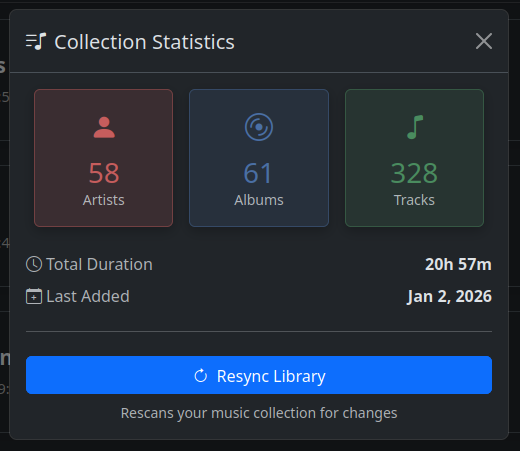
When you open the Collection Management modal, you'll see current statistics about your music library.
Artist Count
The total number of unique artists in your music collection. This includes both individual artists and bands.
Album Count
The total number of unique albums across all artists. Compilation albums with various artists are counted as separate albums.
Track Count
The total number of individual music tracks in your collection.
Total Duration
The combined playback time of all tracks in your library, displayed in a human-readable format:
- Days (d)
- Hours (h)
- Minutes (m)
Example: 5d 3h 45m means 5 days, 3 hours, and 45 minutes of total music
Last Added
Shows the age of the most recently added track in your collection:
- Recent additions - Displays as relative time (e.g., "2 hours ago", "3 days ago")
- Older additions - Shows the actual date (e.g., "Dec 15, 2024")
What does Last Added mean?
This indicates when the newest file in your collection was added to your music directory (based on file modification time), not when it was added to the database. After resyncing, this reflects the youngest track in your entire collection.
Tip
The statistics automatically refresh each time you open the modal, ensuring you always see up-to-date information.
🔄 Resyncing Your Library
Resyncing is essential for keeping your music database in sync with your actual music files. You should resync whenever you make changes to your music directory.
When to Resync
Resync your library when you:
- Add new music - New files won't appear until after a resync
- Delete music - Removed files will still appear in the database until resynced
- Move or rename files - The database won't reflect these changes until resynced
- Update metadata - Changes to ID3 tags won't appear until after a resync
- Notice discrepancies - If statistics or search results seem incorrect
How to Resync
- Open the Collection Management modal (click Collection in the navbar)
- Review your current statistics
- Click the Resync Library button at the bottom
- Confirm the resync operation in the confirmation dialog
- The resync process will begin in the background
Resync Duration
Resyncing may take several minutes depending on the size of your music collection. During this time, the application will show an indexing progress screen.
What Happens During Resync
The resync process:
- Scans your music directory for all audio files
- Adds new files to the database
- Updates metadata for existing tracks
- Removes references to deleted or moved files
- Extracts album artwork from audio files
- Recalculates all collection statistics
Info
During the resync process, you'll see a progress screen showing how many files have been processed. You cannot use other features of the application until the resync completes.
After Resync
Once the resync completes:
- All statistics will reflect your current music collection
- New tracks will appear in search results
- Deleted tracks will no longer appear
- Updated metadata will be reflected throughout the application
🧠 Understanding the Resync Process
Initial Indexing vs. Resync
- Initial Indexing - Happens automatically the first time you start the application, building the complete database from scratch
- Resync - Updates an existing database by comparing file system changes with the current database
What Gets Updated
During a resync:
- ✅ Track titles and metadata
- ✅ Artist and album information
- ✅ File paths and locations
- ✅ Duration and bitrate
- ✅ Album artwork
- ✅ File modification times
What Doesn't Change
- ❌ Mixtapes you've created (these remain intact)
- ❌ Application settings
- ❌ Your login credentials
❓ Common Questions
Why are my new files not showing up?
New files won't appear in the application until you resync your library. The database only knows about files that existed at the time of the last sync.
What counts as a unique album?
An album is considered unique based on the combination of artist name and album title. The same album title by different artists counts as separate albums.
How is duration calculated?
The total duration is the sum of all track durations in your collection. If a track's duration cannot be determined from its metadata, it's excluded from the total.
Can I cancel a resync in progress?
No, once a resync starts, it must complete. However, the process is safe and can be performed as often as needed without risk to your data.
Will resyncing affect my mixtapes?
No, resyncing only updates the music database. Your created mixtapes and their track lists remain unchanged.
How often should I resync?
Resync whenever you make changes to your music collection. There's no harm in resyncing frequently - it simply ensures your database stays current.
⚠️ Troubleshooting
Statistics won't load
If the statistics fail to load:
- Ensure you have an active internet connection
- Try refreshing the page
- Close and reopen the modal
- Check that your music library has been indexed at least once
Resync fails or gets stuck
If a resync operation fails or appears stuck:
- Check the progress screen to see if it's still processing
- Wait for the current operation to complete (it may take longer for large libraries)
- Check your server logs for error messages
- Ensure your music directory is accessible and permissions are correct
- Verify you have sufficient disk space for the database
Resync says "already in progress"
If you try to start a resync while one is already running:
- Wait for the current resync to complete
- Check the indexing progress screen
- If the process appears truly stuck, restart the application
Statistics seem incorrect after resync
If your statistics don't look right after a resync:
- Close and reopen the Collection Management modal to refresh the data
- Check that all your music files are in the configured music directory
- Verify that your audio files have valid metadata tags
- Try another resync to ensure all files were processed